Does your PC have a graphics card?
Visaria runs on your PC's dedicated graphics card (GPU). Here is how to check what you have and, if you need one, how to add it.
Check what you have
- 1
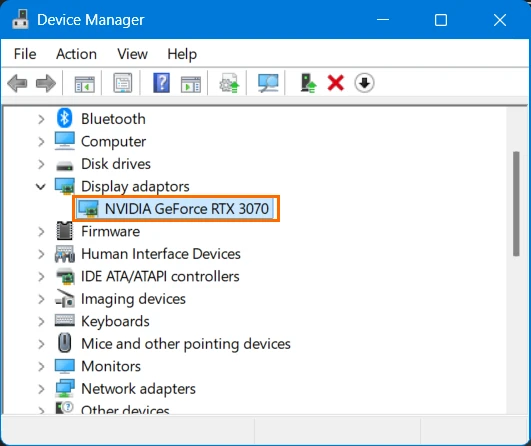
Press the Windows key, type Device Manager and open it.
- 2
Click the arrow next to Display adapters. Your graphics card is listed underneath.
You want to see NVIDIA GeForce (GTX or RTX) or AMD Radeon (RX), at least a GTX 1050 or RX 560. If you only see Intel graphics (UHD or Iris) or Microsoft Basic Display Adapter, your PC has no dedicated graphics card and needs one.
Check before you buy
A free, full-length PCIe slot on the motherboard. Most desktop PCs have one.
Enough room in the case for the length of the card.
Whether the PC is a slim model. Slim PCs need a low-profile card.
Choose a card
No extra power cable needed
These suit most family and office PCs: a GTX 1050 or 1050 Ti, or a newer low-power card such as the RX 6400. Used ones start at around £30.
Best performance
A card in the RTX 2060 to RTX 3070 range runs Visaria best. These need power cables from the PC's power supply, so check that yours has the right connectors and enough power.
Fit it in five steps
Power off
Shut down the PC, switch it off at the wall and unplug it.
Open the case
Remove the side panel, usually held by two screws at the back. Touch the bare metal of the case first to discharge static, then find the long slot on the motherboard.
Fit the card
Remove the slot cover at the back of the case, push the card straight into the slot until it clicks and fix it with a screw. Plug in the power cables if the card has them.
Close up
Refit the side panel and plug the PC back in. Connect your monitor to the sockets on the new card, not the ones on the motherboard.
Install the driver
Switch on, download the latest driver for your card from the NVIDIA or AMD website, install it and restart. Then open Visaria.
A laptop without a dedicated graphics card cannot be upgraded this way. If you have bought a licence you cannot use, pass the code on to someone else instead: ask at licensing@visaria.dev.